Members
The Members section provides tools to manage workspace users and access requests.
Inviting Members
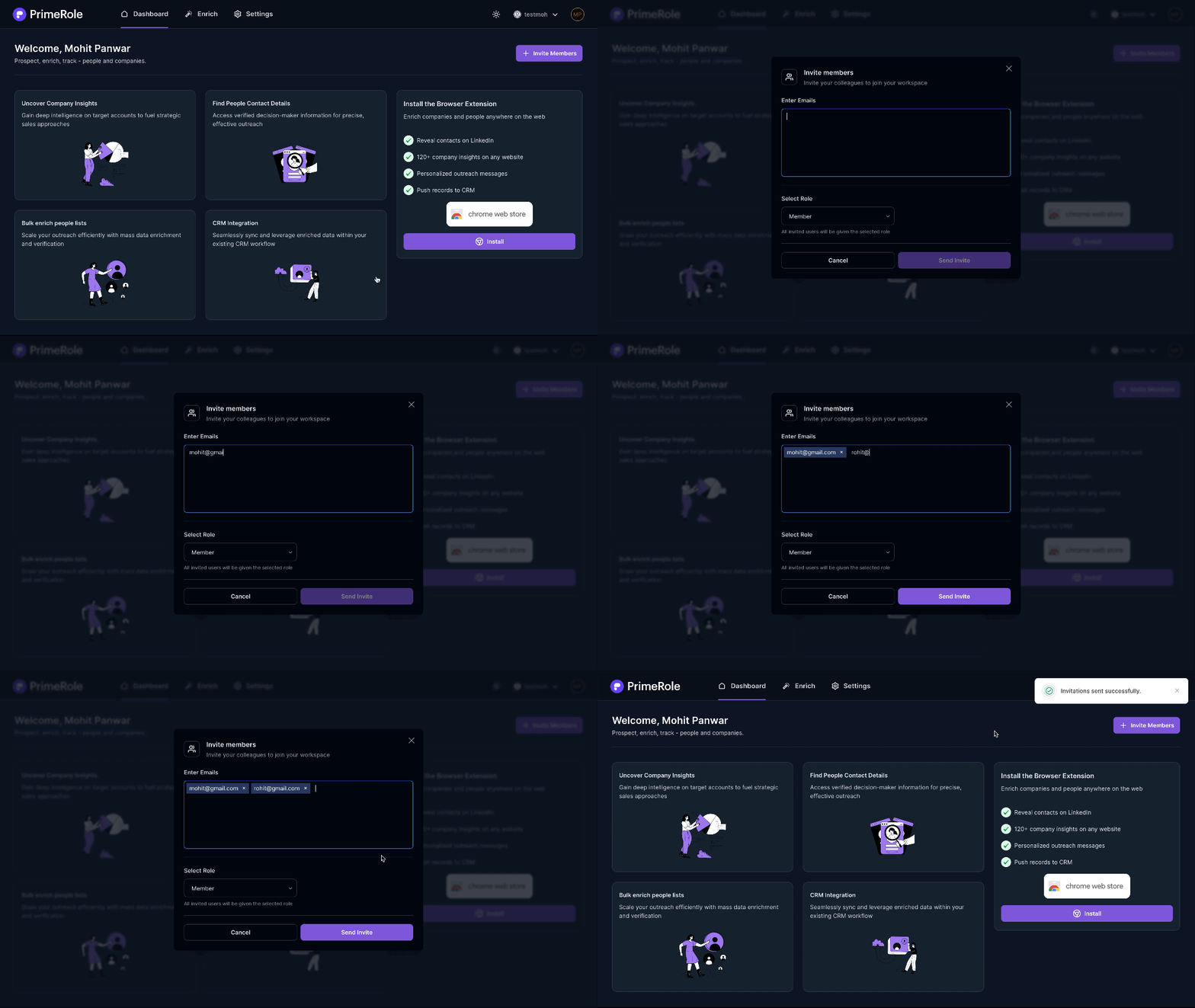
- Go to PrimeRole Platform: Open the PrimeRole platform in your web browser.
- Go to Dashboard: Click on "Dashboard" in the main navigation bar.
- Go to Invite Members: Select "Invite Members" from the left sidebar menu.
- Enter User Information: In the modal that appears:
- Enter the email address of the user you wish to invite.
- Select the appropriate role and group for the member.
- Send the Invitation: Click the button to send the invite. You can then view the status of sent invitations on this page.
Viewing Active Members and Requests
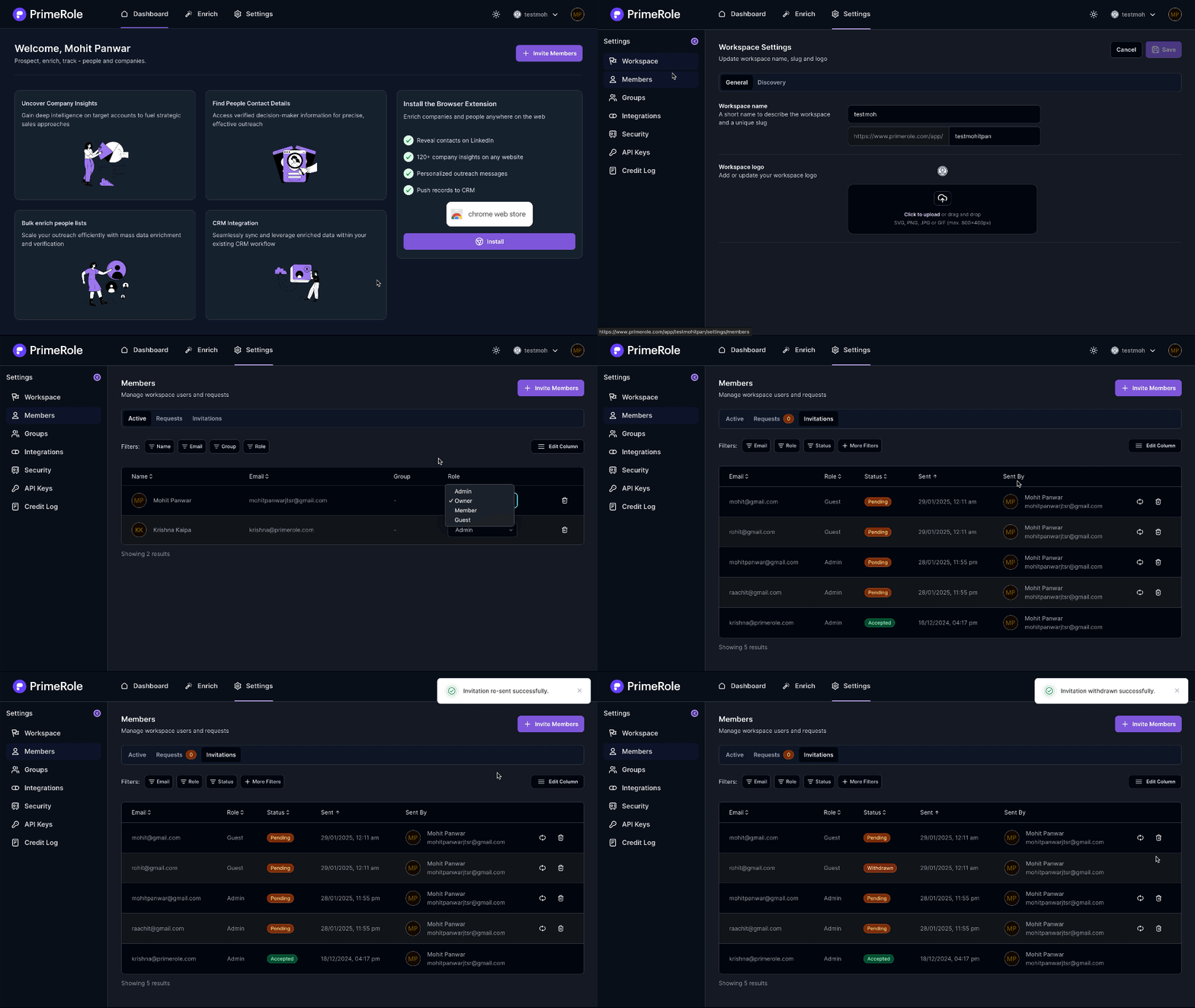
- Navigate to Settings: Go to settings from the navbar.
- Navigate to Members: Select "Members" from the left side of settings page.
- View Active Members: Click the "Active" tab to view all current workspace members.
- View Requests: Click the "Requests" tab to see pending requests to join your workspace.