Workspaces
The Workspaces section allows you to manage the creation, switching, and deletion of workspaces, providing flexible organization for your data.
Accessing Workspaces Settings
- Go to PrimeRole Platform: Open the PrimeRole platform in your web browser.
- Go to Settings: Click on "Settings" in the main navigation bar.
- Go to Workspaces: Select "Workspaces" from the left sidebar menu.
Creating a Workspace
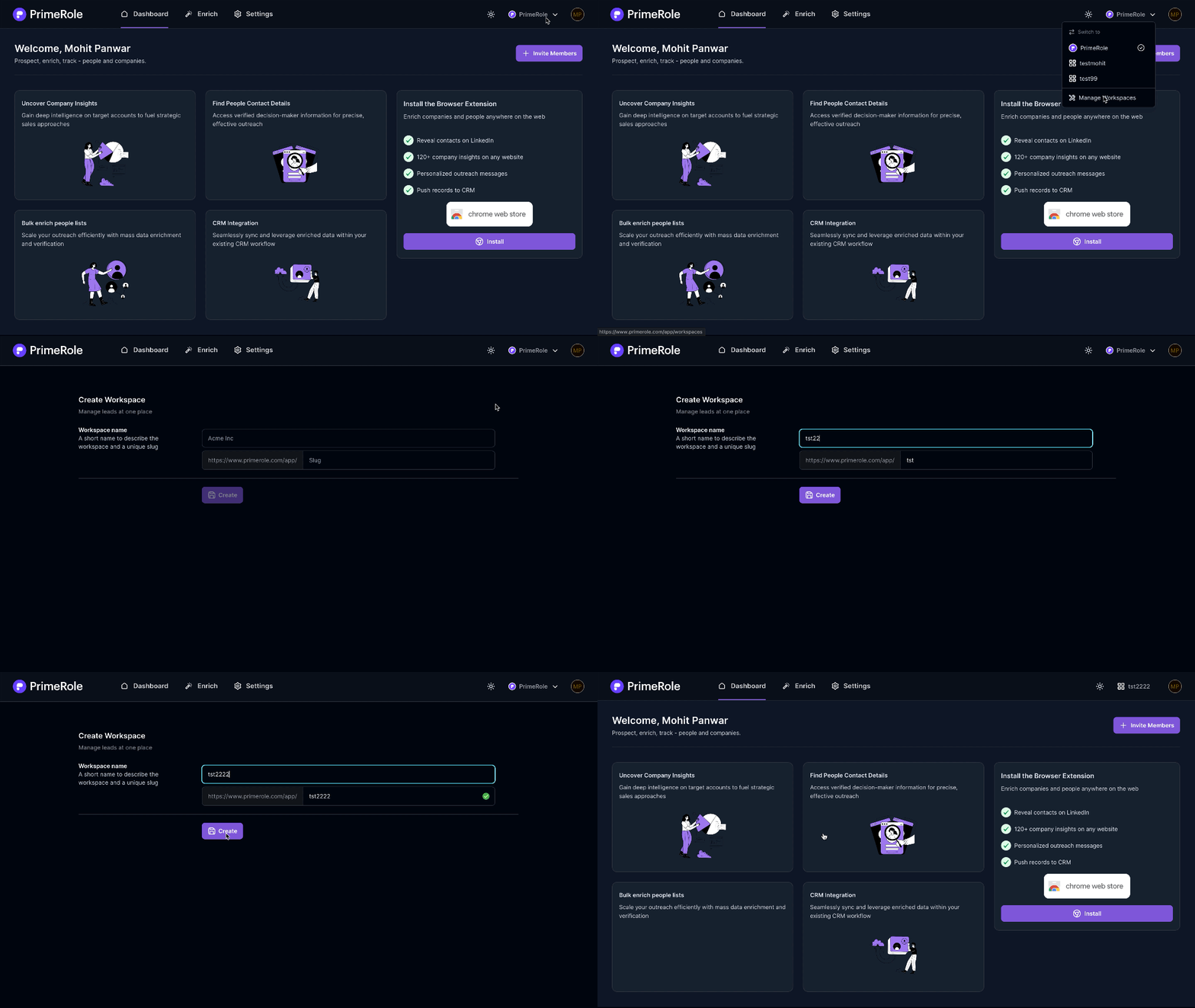
- Navigate to Manage Workspaces: In the PrimeRole platform, click on "Manage Workspaces" in the navigation bar (located next to the theme button).
- Open the Create Workspace Page: In the Manage Workspaces window, click the "Create Workspace" button.
- Enter Workspace Details: On the Create Workspace page:
- Enter the desired workspace name (e.g., "Acme Inc") in the top bar.
- Add a URL-friendly slug (a shortened, URL-friendly version of the name).
- Create the Workspace: Click the "Create" button to finalize the workspace creation.
Launching, Switching, and Deleting Workspaces
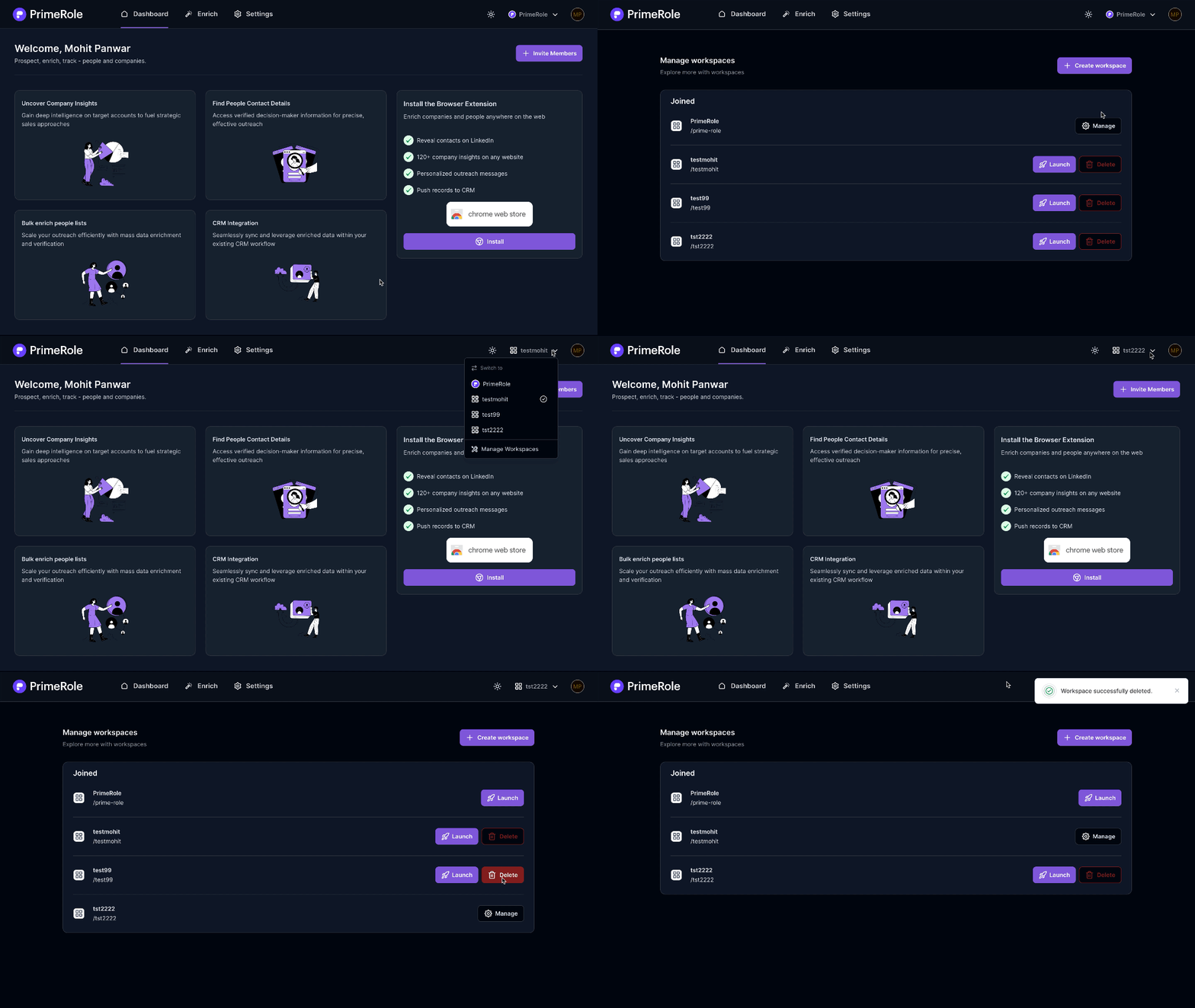
- Navigate to Manage Workspaces: Follow the same steps as above to access the Manage Workspaces page.
- Manage Workspaces: On this page, you can:
- Launch/Switch: Activate and switch between your existing workspaces.
- Delete: Remove a workspace if it is no longer needed.
Workspace Settings
The Workspace Settings section allows you to customize your workspace's configuration. It is divided into two categories: General and Discovery.
General Workspace Settings
In the General settings, you can modify core workspace attributes:
- Name: Update the workspace's name.
- Slug: Change the URL-friendly slug.
- Logo: Update the workspace's logo.
How to Update General Workspace Settings
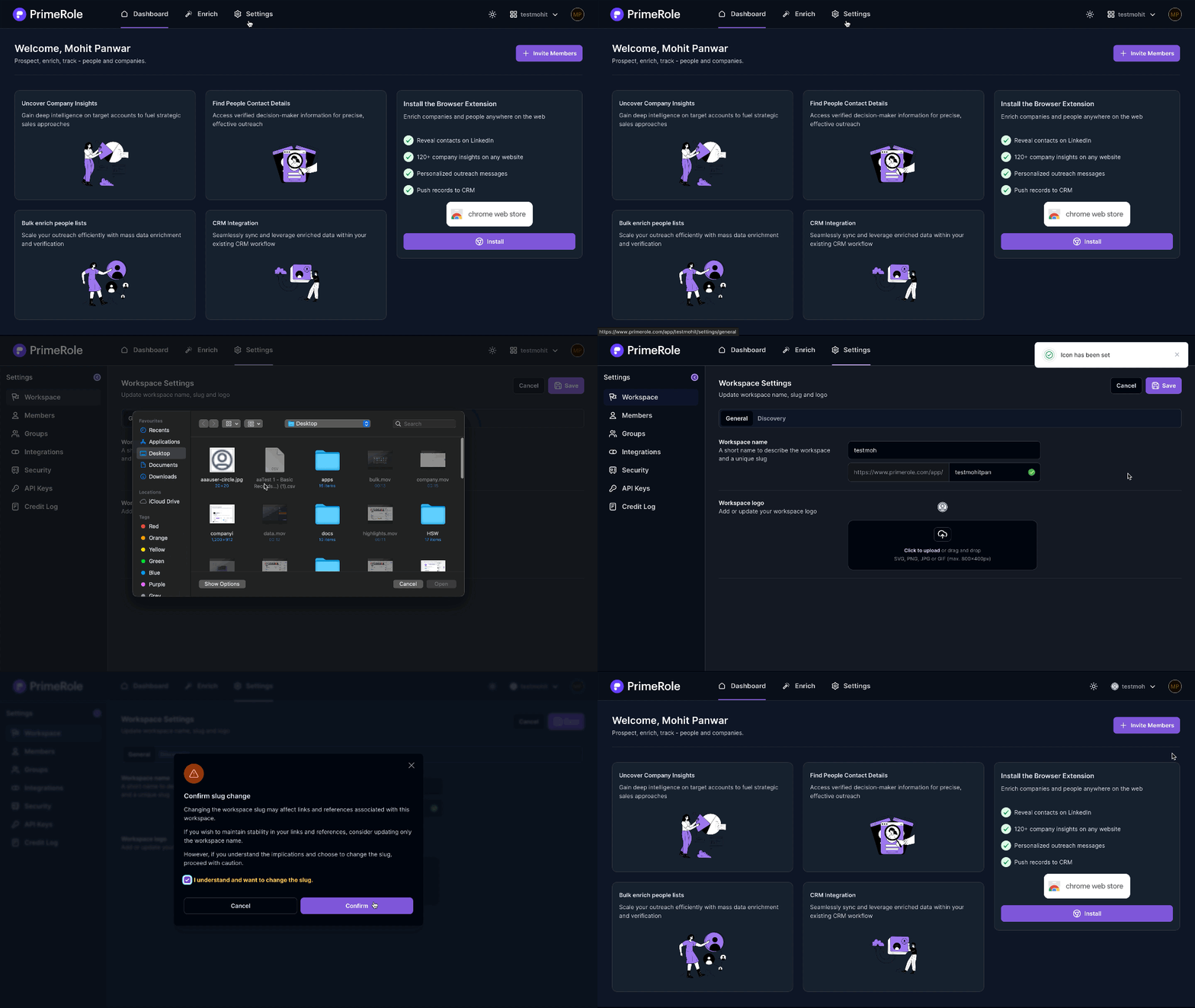
- Access Workspace Settings: In PrimeRole, click "Settings" in the navigation bar, then select "Workspace" from the left sidebar.
- Modify Settings: In the "General" section, make the desired changes to the workspace name, logo, or slug.
- Save Changes: Click the "Save" button in the top right corner to apply your changes.
Discovery Workspace Settings
The Discovery settings control the visibility and accessibility of your workspace. You can configure the following:
- Workspace Visibility: Choose from the following options:
- Invite Only: New users can only join with an invitation from a workspace administrator.
- Admin Approval: New users can request to join, but administrators must approve each request.
- Open Workspace: Users with email addresses from approved domains automatically gain guest permissions without needing an invitation or approval.
- Workspace Domains: Add up to three domains. Users with email addresses from these domains can see your workspace.
How to Update Discovery Workspace Settings
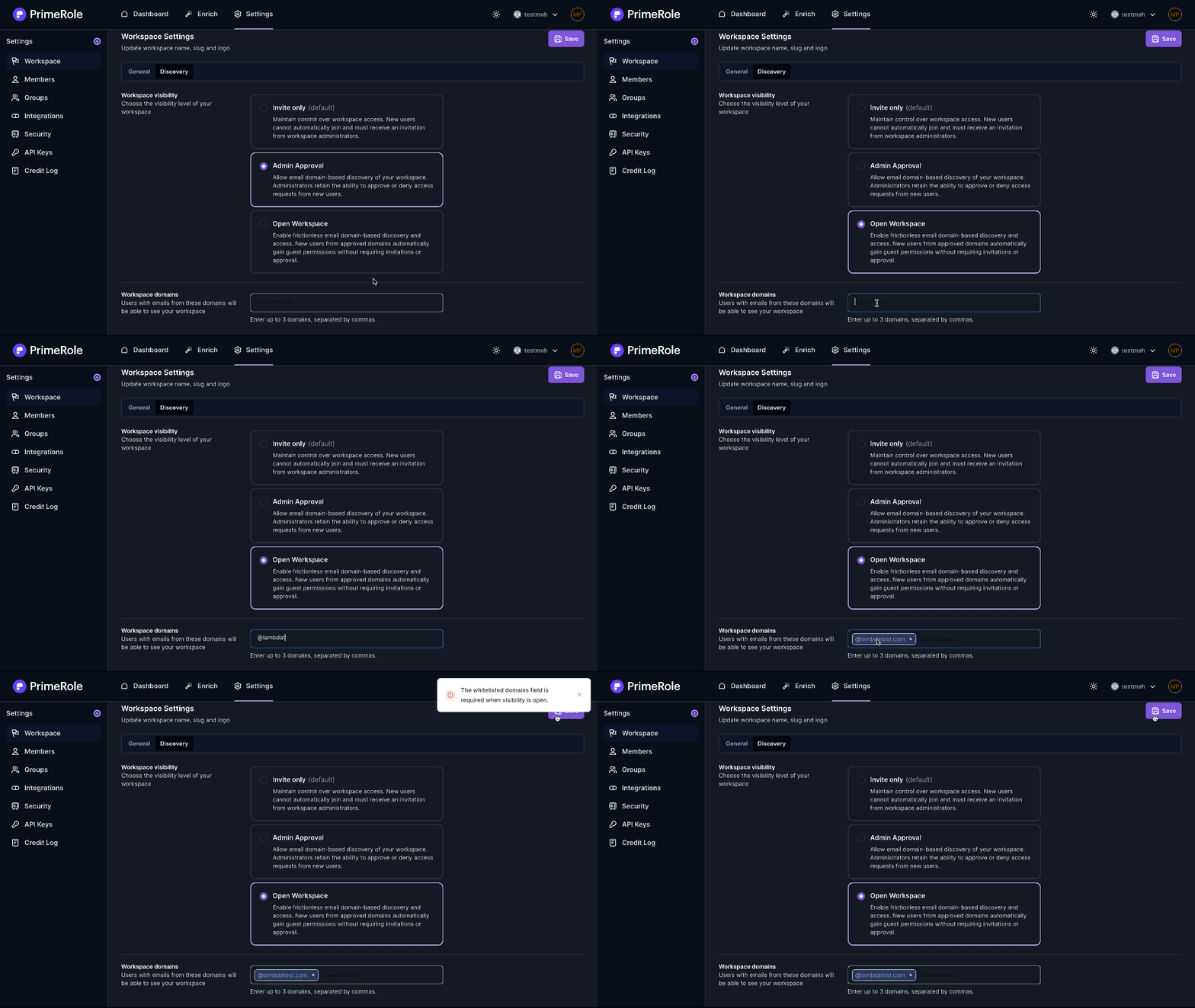
- Access Workspace Settings: As described above, navigate to the Workspace settings.
- Modify Discovery Settings: In the "Discovery" section, update the workspace visibility and add or remove domains as needed.
- Save Changes: Click the "Save" button in the top right corner to apply your changes.